Keeping up with social media image sizes can feel like chasing a moving target. One moment, your profile photo fits perfectly; the next, it’s awkwardly cropped or stretched, leaving your content looking unprofessional.
And with platforms constantly updating their specifications, finding the exact image dimensions can feel like searching for buried treasure.
No need to stress, this guide has you covered! Below, you’ll find the most up-to-date social media image sizes as of January 2025, so your visuals stay polished, professional, and ready for action.
Why Image Sizes Are Your Social Media Superpower
Your visuals are the first thing people notice. When someone lands on your post, they see the image before they read the caption. If that image is sharp and well-framed, they’re more likely to pause and engage. If it’s blurry, cropped wrong, or stretched, they scroll past without thinking twice. The way your visuals show up affects how people see your content and your brand.
The wrong size can throw everything off
Using incorrect image sizes leads to common problems like pixelation, poor framing, or slow loading times. It can also make your content look unprofessional, even if the actual message is strong. When your visuals don’t land well, your brand feels off, and your posts don’t perform the way they should.
Getting the sizes right makes your content stronger
This guide is here to help you get your image dimensions right from the start. It includes the latest sizes for every major platform as of July 2025. Whether you’re posting stories, ads, reels, or profile images, you’ll know exactly what to use. That means less guesswork, cleaner visuals, and better engagement across the board.
Platforms change, and your content needs to keep up
Social media apps update constantly. A layout tweak or new feature can change how your images are displayed. If you’re still using last year’s specs, your content might not show up the way you expect. This guide helps you stay current so your posts always look the way you intended.
Essential Image Optimization Tips for All Platforms
Because a good-looking image is more than just the right size. You’ve got the image dimensions sorted, but that’s only part of the story. To make sure your visuals look sharp, load fast, and work well across every platform, here are some simple but important tips you should always follow.
1. Know Your Aspect Ratios
Aspect ratios are the shape of your image. It’s how wide it is compared to how tall it is. Getting this right helps your content fit properly on different platforms.
Here are some common ones to remember:
- 1:1 (Square) is perfect for Instagram and Facebook posts
- 4:5 (Portrait) gives more vertical space and grabs attention while scrolling
- 16:9 (Landscape) works great for YouTube thumbnails or LinkedIn banners
Why it matters
If the shape doesn’t match the platform, your image might look cropped or stretched. Choosing the right aspect ratio keeps everything in frame and looking clean.
2. Use the Right File Format
Each file type has a different purpose. Here’s when to use what:
- JPG is best for regular photos. It loads quickly and keeps the file size small
- PNG is great for images with text, graphics, or transparent backgrounds
- GIF works for simple animations, but can slow things down if overused
Tip
Use JPGs when speed matters, PNGs for sharp edges and text, and GIFs only when you really need movement.
3. Watch Image Quality and Loading Time
High-quality images look amazing, but if the file is too large, it takes longer to load. That can hurt engagement and user experience.
To keep your images crisp and fast:
- Compress images before uploading using free tools like TinyPNG or Squoosh
- Don’t overdo the quality setting, aim for a balance between clarity and speed
- Stick to platform file size limits, especially for ads and stories
4. Leave Room for Cropping
Different devices crop images in different ways. What looks perfect on desktop might be cut off on mobile.
To stay safe:
- Keep your main content (like faces, logos, or text) in the center
- Leave space at the top, bottom, and sides so nothing important gets chopped
- Preview your post in both desktop and mobile views before publishing
5. Keep Text Clear and Readable
Text on images can boost engagement, but only if people can actually read it.
Here’s how to do it right:
- Use bold, legible fonts and make sure the text isn’t too small
- Avoid putting text too close to the edges
- Use contrasting colors so your words stand out from the background
- Keep it short and to the point because no one reads long paragraphs on images
When your images are the right size and format, everything just works better. Your content looks cleaner, loads faster, and fits every screen, making your brand look polished every time.
Key Social Media Image Sizes at a Glance
| Platform | Profile Picture | Cover Photo / Banner | Standard Post | Story / Reels / Vertical Format |
|---|---|---|---|---|
| 196 x 196 px | 851 x 315 px | 1440 x 1440 px (1:1), 1440 x 1800 px (4:5) | 1440 x 2560 px (9:16) | |
| 320 x 320 px | N/A | 1080 x 1080 px (1:1), 1080 x 1350 px (4:5), 1080 x 566 px (1.91:1) | 1080 x 1920 px (9:16), 1080 x 1440 px (grid) | |
| X (Twitter) | 400 x 400 px | 1500 x 500 px | 1280 x 720 px (landscape), 720 x 1280 px (portrait), 720 x 720 px (square) | 1280 x 1080 px (GIF) |
| 400 x 400 px | 1584 x 396 px | 1200 x 628 px (landscape), 1200 x 1200 px (square), 720 x 900 px (vertical) | 1080 x 1920 px (ads/stories) | |
| 280 x 280 px | 800 x 450 px | 1000 x 1500 px (2:3), 1000 x 1000 px (1:1) | 1000 x 1500 px (2:3) | |
| TikTok | 98 x 98 px | N/A | 1080 x 1920 px | 1080 x 1920 px (9:16), 720 x 1280 px |
| YouTube | 800 x 800 px | 2560 x 1440 px | 1280 x 720 px (thumbnail) | 1920 x 1080 px (video) |
| Snapchat | 320 x 320 px | 375 x 278 px | 1080 x 1920 px | 1080 x 1920 px (9:16) |
Facebook Image Sizes

Facebook can be a little tricky because image sizes look different on desktop and mobile. Since people use both, it’s important to get your sizes right. Here’s a quick guide to help you:
Profile Picture
- Recommended size: 196 x 196 pixels
- Display on desktop: 176 x 176 pixels
- Display on mobile: 196 x 196 pixels
Tip
Your profile picture shows up small, so try to keep it clear and simple.
Cover Photo
This is the big banner at the top of your page, which can be great for branding.
- Recommended size: 851 x 315 pixels
- Shows on desktop: 820 x 312 pixels
- Shows on mobile: 640 x 360 pixels
- Minimum size: 400 x 150 pixels
- Best file size: Under 100KB
Quick Tips
- Use JPG or PNG to avoid blurry images.
- Stick to the recommended sizes for better loading.
- If your image has a logo or text, PNG works best.
- Don’t drag or move the image after uploading your cover photo.
Timeline Photo and Post Size
- Landscape image: 1080 x 566 pixels (1.91:1)
- Vertical image: 1080 x 1359 pixels (4:5)
- Square image: 1080 x 1080 pixels (1:1)
Image Sizes for Facebook Ads
Facebook suggests keeping about 14% of the top, 35% of the bottom, and 6% on each side free of text, logos, or important visuals to make sure nothing gets cropped or hidden.
Feed Ads
- Recommended sizes:
- 1440 x 1440 pixels (1:1)
- 1440 x 1800 pixels (4:5)
- Minimum size: 600 x 600 pixels
- Max file size: 30 MB
Search Ads
- Size: At least 1080 x 1080 pixels
- Aspect ratio: 1.91:1 to 1:1
- Max file size: 30 MB
Marketplace Ads
- Minimum size: 1080 x 1080 pixels
- Aspect ratio: 1:1
- Max file size: 30 MB
Right Column Ads (Desktop Only)
- Size: At least 1080 x 1080 pixels
- Aspect ratio: 1:1
Stories Ads
- Size: 1440 x 2560 pixels
- Aspect ratio: 9:16
- Max file size: 30 MB
- Safe zones:
- Leave 14% (250px) at the top
- Leave 20% (340px) at the bottom
- Keep these areas free of text, logos, or key visuals to avoid UI overlap.
Reels Ads
- Size: 1440 x 2560 pixels
- Aspect ratio: 9:16
- Safe zones:
- 14% at the top
- 35% at the bottom
- 6% on each side
- Avoid placing important content in these areas to prevent cropping.
Quick Tips
- Upload JPG or PNG files to keep your images sharp and avoid compression issues.
- Stick to the recommended pixel sizes to help your visuals load quickly and display correctly.
- Use PNG format when your image includes logos or text—this keeps everything crisp and clear.
- Avoid repositioning your cover photo after uploading, it can affect alignment and cut off important elements.
Instagram Image Sizes

Instagram allows square, portrait, and landscape images, but there’s a catch. While all orientations appear as intended in the feed, your profile grid shows a center-cropped square version of each image.
This means your original photo might get cut off on the grid, making it harder to keep a clean, consistent layout. To maintain a cohesive look, it’s important to plan ahead and use the right dimensions. Here’s how to get it right.
Profile Picture
Instagram profile photos appear at 110 x 110 pixels, but they’re saved at a higher resolution of 320 x 320 pixels, so always upload an image that’s at least that size for best clarity.
Even though the image is uploaded as a square, it’s displayed as a circle (1:1 ratio). Be sure to keep important elements (like faces or logos) centered to avoid them being cut off.
- Square Images: 1080 x 1080 pixels (1:1 aspect ratio)
- Portrait Images: 1080 x 1350 pixels (4:5 aspect ratio)
- Landscape Images: 1080 x 566 pixels (1.91:1 aspect ratio)
- Vertical image: 1080 x 1350 pixels (feed) / 1012 x 1350 (grid)
- Carousel images: 1080 x 1350 pixels (feed) / 1012 x 1350 (grid)
- Supported aspect ratios: Anywhere between 1.91:1 and 4:5 (feed) / 3:4 (grid)
Feed Posts
- Landscape image: 1080 x 566 pixels (feed) / 1012 x 1350 (grid)
- Vertical image: 1080 x 1350 pixels (feed) / 1012 x 1350 (grid)
- Square image: 1080 x 1080 pixels (feed) / 1012 x 1350 (grid)
- Carousel images: 1080 x 1350 pixels (feed) / 1012 x 1350 (grid)
- Supported aspect ratios: Anywhere between 1.91:1 and 4:5 (feed) / 3:4 (grid)
- Recommended image size: Width of 1080 pixels, height between 566 and 1350 pixels
Quick Tips
- For the best quality, try to upload images that are 1080 pixels wide.
- If your photo is wider than 1080 pixels, Instagram will shrink it down.
- If it’s smaller than 320 pixels, Instagram will stretch it to fit, this can make it look blurry.
- Instagram keeps your photo’s original resolution if it’s between 320 and 1080 pixels wide and has an aspect ratio between 1.91:1 and 4:5 (that means the height should be between 566 and 1350 pixels if the width is 1080).
- If your image doesn’t match a supported ratio, Instagram will automatically crop it to fit.
- And remember: even though your post can be landscape or portrait, your profile grid always shows a square crop, so keep key parts of the image in the center.
Image Size for Instagram Stories
- Recommended size: 1080 x 1920 pixels
- Aspect Ratio: 9:16
Tip
The “safe zone” for content is 1080 x 1610 pixels. Keep all important elements, like text, logos, or key visuals—within this area to make sure they don’t get cut off.
Instagram Reel Sizes
Ensure the focal point is centered to avoid cropping in the preview grid.
- Recommended size: 1080 x 1920 pixels (feed) / 1080 x 1440 pixels (grid)
- The feed uses a 9:16 aspect ratio, while the grid crops it to 3:4. Make sure your key visuals work in both.
Image Sizes for Instagram Ads
- Supported aspect ratios: Anything between 1.91:1 (landscape) and 4:5 (portrait) is allowed.
- Landscape: 1080 x 566 pixels
- Vertical: 1080 x 1350 pixels
- Square: 1440 x 1440 pixels
- Minimum width: 500 pixels
- Minimum height: 400 pixels
Image Size for Instagram Reels Ads:
- Recommended size: 1440 x 2560 pixels
- Recommended ratio: 9:16 ratio
Image Size for Instagram Stories Ads:
- Recommended size: 1440 x 2560 pixels
- Recommended ratio: 9:16
X (Formerly Twitter) Image Sizes
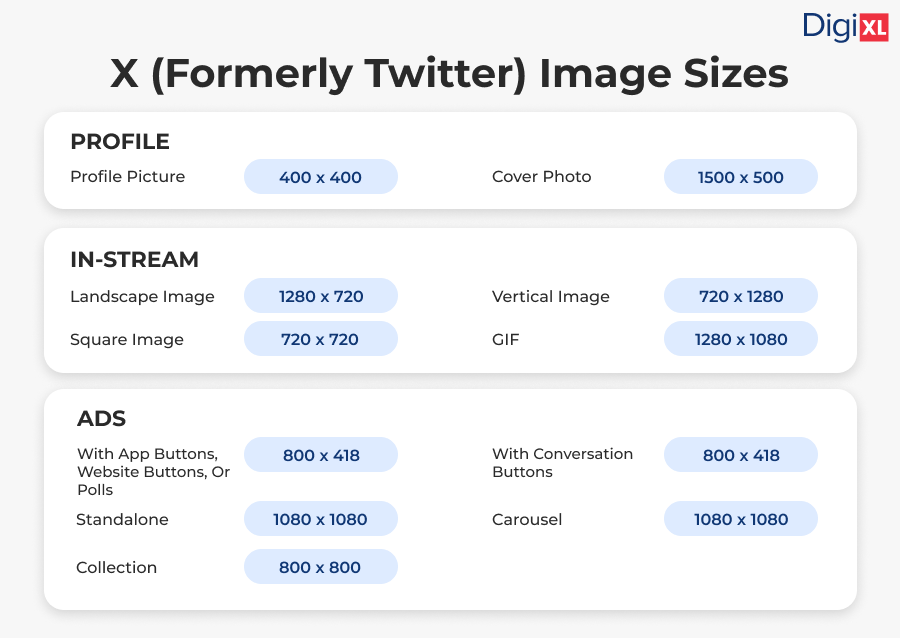
With the new video tab, X is clearly leaning into a richer multimedia experience. Adding images to your posts is a great way to stand out and grab attention in the feed.
(Quick tip: even though this isn’t a video size guide, the recommended aspect ratio for videos on X’s new tab is 9:16, with a minimum resolution of 720 x 1280.)
Twitter Profile Picture Size
- Recommended Size: 400 x 400 pixels
- Aspect Ratio: 1:1
- Maximum file size: 2 MB
- Header Photo Size
- Recommended Size: 1500 x 500 pixels
- Aspect Ratio: 3:1
Tip
Use high-resolution images to avoid pixelation. Header images on X can look slightly different depending on the monitor or browser. Even if you use the recommended size, up to 60 pixels may get cropped from the top and bottom, so keep key visuals centered.
In-Stream Image
- Landscape image: 1280 x 720 pixels
- Vertical image: 720 x 1280 pixels
- Square image: 720 x 720 pixels
- GIF: 1280 x 1080 pixels
Quick Tips
- Images will display as a preview and expand upon clicking.
- Supported formats: GIF, JPG, and PNG
- Max file size: Up to 5MB for photos and GIFs on mobile, and 15MB when uploading via web.
X Ad Image Size Guidelines
- Ads with app buttons, website buttons, or polls:
Use 800 x 418 px (1.91:1) or 800 x 800 px (1:1).
Note: Square images in poll ads will crop to 1.91:1 on mobile. - Ads with conversation buttons:
Use 800 x 418 px (1.91:1). - Standalone image ads:
Use 1200 x 1200 px (1:1) or 1200 x 628 px (1.91:1). - Carousel ads:
Use 800 x 418 px (1.91:1) or 800 x 800 px (1:1).
All images must follow the same aspect ratio. - Collection ads:
Use 800 x 800 px (1:1), max file size 3 MB.
LinkedIn Image Sizes
LinkedIn focuses on professional connections, making image clarity essential. Use these sizes:
Profile Picture
- Recommended Size: 400 x 400 pixels or larger (recommended).
- Maximum: 7680 x 4320 pixels or 8MB.
Cover Photo
- Recommended Size: 1584 x 396 pixels (recommended).
- Aspect ratio: 4:1.
- Maximum: 8 MB.
Quick Tips
- Cover photos display differently on mobile and desktop, make sure to preview your profile on both before finalizing to avoid unwanted cropping.
LinkedIn Company Pages
- Life tab company photos image sizes: 900 x 600 pixels
- Company logo size: 400 x 400 pixels
- Page cover image size: 1128 x 191 pixels
- Life tab main image size: 1128 x 376 pixels
- Life tab custom modules image size: 502 x 282 pixels
Image Sizes for LinkedIn Ads
Recommended Size: 800 x 418 pixels
- With app buttons, website buttons, or polls:
Use 800 x 418 pixels (1.91:1) or 800 x 800 pixels (1:1).
Note: Square images (1:1) will crop to 1.91:1 on mobile timelines when using polls. - With conversation buttons:
Use 800 x 418 pixels (1.91:1).
Landscape (for desktop and mobile)
- Recommended Size: 1200 x 628 pixels
- Minimum size: 640 x 360 pixels
- Maximum size: 7680 x 4320 pixels
- Max file size: 5 MB
Square (for desktop and mobile): 1200 x 1200 pixels (recommended)
- Minimum size: 360 x 360 pixels
- Maximum size: 1200 x 1200 pixels
- Max file size: 5 MB
Vertical (mobile only): 720 x 900 pixels (recommended)
- Minimum size: 360 x 640 pixels
- Maximum size: 2430 x 4320 pixels
- Max file size: 5 MB
Carousel ads: 1080 x 1080 pixels
- Can include 2 to 10 images
- Max file size: 10 MB
Pinterest Image Sizes

Pinterest is a highly visual platform where image size and aspect ratio play a key role in how your content appears. Whether you’re sharing product Pins or running paid campaigns, using the right dimensions ensures your visuals stay crisp, unclipped, and effective.
Profile Picture
- Recommended Size: 280 x 280 pixels
Profile Cover Photo
- Recommended Size: 800 x 450 pixels ( minimum)
- Aspect Ratio: This is a 16:9 aspect ratio.
- Tip: Avoid making pins too tall, as they may get cut off.
Pinterest Image Sizes for Pins
- Recommended size: 1000 x 1500 pixels
- Recommended aspect ratio: 2:3
- Other supported ratios: 9:16, 3:4, 4:5, 1:1
- Max file size:
- Web: 20 MB
- App: Up to 1 GB recommended
Design Within the Safe Zone
To make sure your content looks great on every device, keep important elements like text, logos, or key visuals inside the “safe zone.” This zone helps prevent unwanted cropping, especially on mobile screens.
Here’s the breakdown:
- Top margin: 270 pixels
- Bottom margin: 790 pixels
- Left margin: 65 pixels
- Right margin: 195 pixels
Avoid placing anything essential outside these boundaries. Staying within the safe zone ensures your message stays clear, centered, and scroll-proof across all screen sizes.
Pinterest Image Sizes for Collection Pins
- Aspect ratio: 1:1 (recommended) or 2:3
- Recommended size: 1000 x 1000 pixels or 1000 x 1500 pixels
- Max file size: 10MB
Quick Tips
- Collection Pins display as one main image, followed by 3 to 24 smaller images underneath.
- The main image can have a different aspect ratio than the rest, but all the smaller images must use the same ratio.
- These Pins are shown primarily in mobile feeds, so using the 1:1 square format is generally the safest option.
- If you choose a non-standard aspect ratio, Pinterest will crop from the center, so make sure all key content is centered.
- Collection Pins can also be used as an ad format, making them a powerful tool for showcasing product bundles or stories.
Image Sizes for Pinterest Ads
Pinterest offers multiple ad formats, and using the right image size ensures your content stays sharp and scroll-worthy.
Shopping Ads
- Recommended size: 1000 x 1500 pixels
- Recommended aspect ratio: 2:3
- Maximum file size: 20 MB
Carousel Ads
- Recommended sizes
- 1000 x 1500 pixels (2:3)
- 1000 x 1000 pixels (1:1)
- Image count: 2 to 5 images
- Maximum file size per image: 10 MB
TikTok Image Sizes
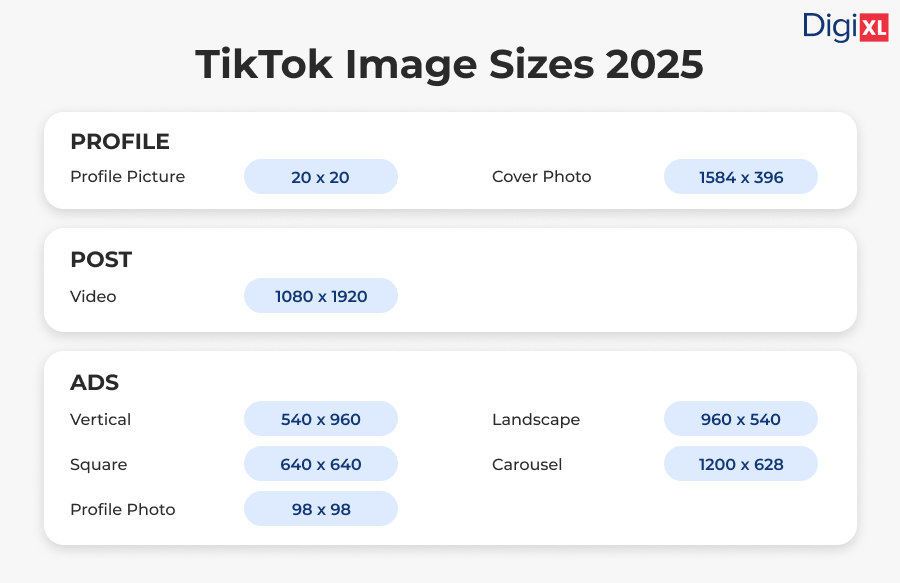
TikTok’s vertical video format dominates, but images like profile pictures and thumbnails are still crucial:
Profile Photo Size
- Minimum upload size: 20 x 20 pixels
- Tip: Upload a higher-resolution image to keep your profile looking sharp across all devices and future updates.
Cover Photo Size
Recommended size: 1584 x 396
Video Size
- Recommended dimensions: 1080 x 1920 pixels
- Ideal aspect ratio: 9:16 (vertical)
- Note: You can upload videos in other dimensions, but TikTok will add black bars to the top and bottom to fit the full-screen format. For the best viewing experience, stick to the 9:16 ratio.
Image Size for TikTok Ads
- Vertical (recommended): Minimum 540 x 960 pixels (aspect ratio 9:16)
- Landscape: Minimum 960 x 540 pixels (aspect ratio 16:9)
- Square: Minimum 640 x 640 pixels (aspect ratio 1:1)
Carousel Ads
- Recommended sizes:
- 1200 x 628 pixels
- 640 x 640 pixels
- 720 x 1280 pixels
- Image count: 2 to 35 images
- Max file size (recommended): 100 KB per image
Profile Photo for Ads
- Size: 98 x 98 pixels (1:1 aspect ratio)
- Max file size: 50 KB
YouTube Image Sizes
YouTube may focus on video, but strong visuals, like channel art, thumbnails, and profile images, play a key role in building a recognizable and professional brand presence.
Profile Picture
- Recommended Size: 800 x 800 pixels
- For the best results, keep the main focus of your photo centered.
- Photos display at 98 x 98 pixels, with a maximum file size of 15 MB.
YouTube Banner Image Sizes
- Recommended Size: 2560 x 1440 pixels
- Aspect ratio: 16:9
- Minimum dimensions: 2048 x 1152 pixels
- Maximum file size: 6 MB
- Tips: Safe area for text and logos is 1235 x 338 pixels (centered, to avoid cropping on smaller screens).
Video Thumbnail
- Recommended Size: 1280 x 720 pixels
- Minimum width: 640 pixels
- Max file size: if 2 MB
- Aspect Ratio: 16:9
Thumbnail Options for Shorts
You can’t upload a custom thumbnail for YouTube Shorts, but you can choose a specific frame from your video to set as the thumbnail. Select a frame that clearly represents your content to help attract more views.
Video Ad Guidelines
- Aspect Ratio: Use 16:9, 1:1, or 4:3.
Tip: 16:9 is best, especially for TV viewers on YouTube. - Video Length: No strict limits for skippable ads,
but videos under 3 minutes usually perform better. - File Format: .MPG (MPEG-2 or MPEG-4) is recommended.
Other common formats are also accepted.
Snapchat Image Sizes

Snapchat is all about quick, eye-catching content, so using the right image and video sizes is essential. Whether you’re sharing Stories or running ads, here are the recommended dimensions to help your content look its best and stand out before it disappears.
Profile Picture (Snapcode)
- Recommended Size: 320 x 320 pixels
- The maximum file size is 2 MB.
Snapchat Banner Image Size
- Recommended Size: 375 x 278 pixels
- You can upload images up to 375 x 569 pixels, but they’ll be cropped to 375 x 278 pixels when displayed.
- Maximum file size: 2 MB
Image Size for Snap Ads
- Recommended Size: 1080 x 1920 pixels (minimum)
- Aspect Ratio: 9:16
- File type: JPEG or PNG
- Maximum file size: 5 MB
Keep Key Content Uncovered
To make sure your visuals aren’t hidden by buttons or overlays, avoid placing important text, logos, or design elements in the top 150 pixels or bottom 330 pixels of your image. Keeping your content centered within the safe area ensures everything stays visible across all devices and placements.
Helpful Tools That Make Image Sizing Easier
When you use the right tools, sizing your images becomes quick and stress-free. Instead of guessing dimensions or dealing with awkward crops, you can create visuals that look sharp and professional across every platform. Whether you’re designing posts, ads, or banners, having reliable resources helps you get it right the first time, so you can focus on creating content that truly stands out.
Design Platforms with Ready-Made Templates
- Canva remains a top choice in 2025 with its new Visual Suite 2.0, plus AI-powered tools and extensive templates for virtually every social platform .
- Adobe Express continues to evolve as a strong Canva rival, offering access to Adobe Stock and AI features like Firefly, its free version even includes background removal.
- PicMonkey stays relevant, especially for users who want more creative tools and filters beyond Canva’s basics .
Desktop Software for Full Control
If you want more editing power:
- Adobe Photoshop gives you total control over image quality, layout, and dimensions.
- GIMP offers similar tools for free. It has a learning curve, but it’s ready for serious photo editing.
Online Tools for Optimizing File Size
Optimizing your images before publishing ensures faster loading and better performance:
- TinyPNG helps you shrink image file sizes without losing quality. You can upload PNG or JPG files, and the tool uses smart compression to reduce the file size while keeping your visuals sharp. This means faster-loading pages and better user experience, especially important for mobile users. It’s completely web-based, so you don’t need to download anything, and you can compress multiple images at once.
- Adobe Acrobat, on the other hand, is perfect for optimizing PDF files. You can upload your PDF to the online Acrobat tool and instantly reduce its size while preserving layout and readability. This is especially useful for sharing reports, presentations, or downloadable guides without slowing down your site or clogging email attachments.
Built-In Platform Features
Most social platforms now include cropping and resizing tools right inside the app:
- Instagram and Facebook let you reposition and scale images before posting.
- LinkedIn gives both desktop and mobile previews to help you adjust header and profile images.
- X (Twitter) and YouTube show how visuals will appear across devices so you can tweak before going live.
Use design platforms for fast creation, editing software for deeper control, and optimization tools to keep file sizes under control. And don’t forget to use built-in previews on each platform for the best results.
Essential Tips for Optimizing Social Media Images
Learn how to make your social media images stand out with these essential optimization tips.
- Prioritize High-Resolution Images: Always upload clear, high-quality visuals to avoid pixelation. Crisp, detailed images help maintain a professional image for your brand.
- Test Across Devices: Ensure your images look polished on both desktop and mobile screens. This ensures your content delivers a consistent experience for all users.
- Stay Informed: Social media platforms frequently update their image requirements. Staying current with these changes ensures your content remains optimized for each platform.
- Optimize for Speed: Compress images to improve load times without sacrificing visual quality. Fast loading speeds are crucial for maintaining user engagement and satisfaction.
- Maintain Consistent Branding: Use a cohesive color palette, fonts, and design elements across all social media channels. This consistency strengthens brand recognition and fosters a unified presence.
Why is Getting Social Media Image Sizes Right Crucial?
For social media marketers, creating the perfect visual content goes beyond just choosing the right images.
You must ensure the images are copyright-compliant. If original photos aren’t available, sourcing high-quality stock images is a must. And then there are the tools that can enhance the look of your visuals.
But one of the most important aspects is getting the correct image sizes. Here’s why:
- Avoid pixelation and stretching: Using the wrong size leads to poor quality, but proper sizing ensures your images look sharp and professional.
- Optimize for each platform: Each social network has its own image specifications, and getting these right boosts engagement by ensuring your content fits perfectly in feeds.
- Showcase the full image: Incorrect dimensions can crop out vital parts of your brand’s message, so getting the size right guarantees your audience sees everything you want to convey.
Conclusion
Using the right image sizes helps you show up looking sharp, consistent, and professional on every platform. When you size your visuals correctly, you grab attention faster, build trust, and boost engagement without saying a word. It’s a small detail that makes a big difference.
Go ahead and bookmark this guide and share it with your team if you want more tips that help your content stand out.
Social platforms update all the time, so make it a habit to check back here. Staying current means your brand always shows up at its best—no matter how the algorithms change.
Want your social media visuals to stand out for all the right reasons? Let DigiXL Media help you bring your brand to life with smart image optimization and creative strategies that actually work. For fresh tips, updates, and a little daily inspiration, follow us on LinkedIn, X and Facebook. Let’s turn scroll-stopping visuals into real results together.